

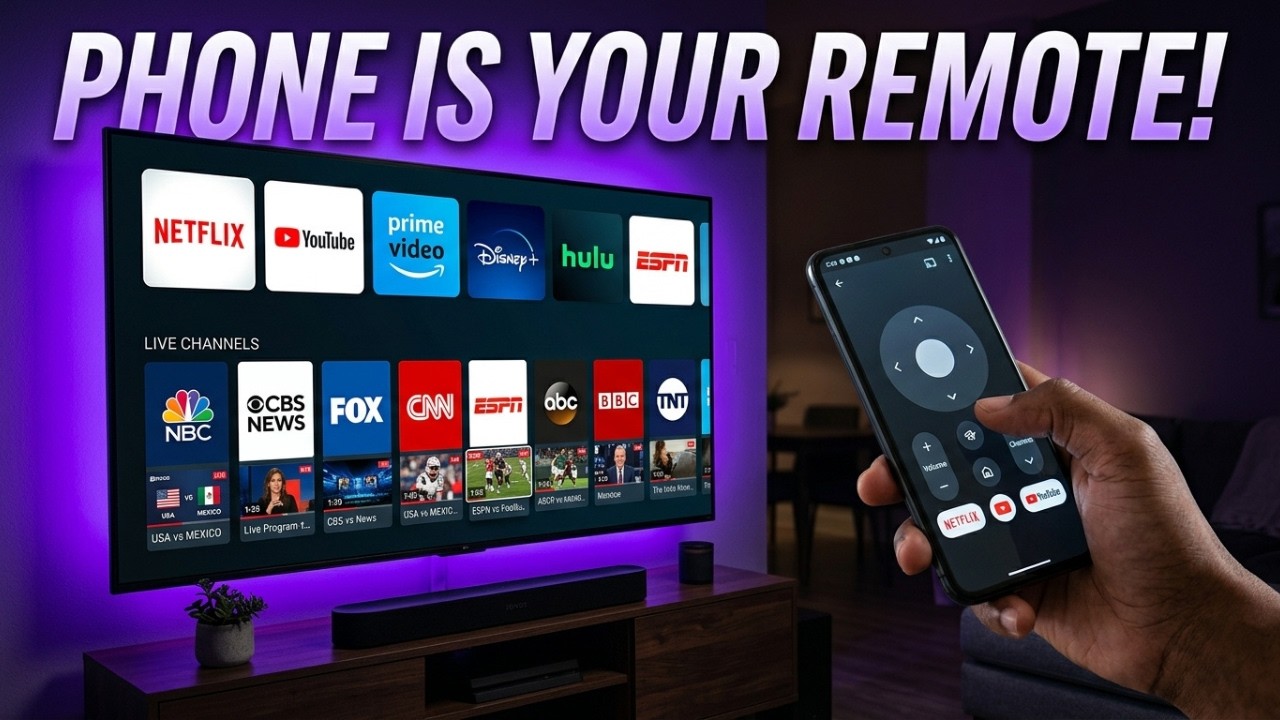
Losing your TV remote can quickly become annoying, especially when you are ready to watch a movie. The good news is that your smartphone can often take its place. If you have a compatible smart TV or streaming device, you can use your phone as a universal TV remote with just a few setup steps.
Modern smartphones already have Wi-Fi, Bluetooth, touch controls, a keyboard, and other features that make them useful for controlling a television. Many popular TV platforms also support phone-based remote controls.
Why Use Your Phone as a TV Remote?
A phone can do more than simply replace the buttons on a traditional remote. You can use it to change the volume, navigate menus, pause videos, launch apps, and type searches.
The biggest advantage is text input. Typing a movie title or entering login details on a phone is usually much faster than selecting individual letters with a traditional remote.
However, compatibility depends on your TV and the app you choose. The word “universal” does not always mean that every television model will work.
What You Need Before Setup
Before you use your phone as a universal TV remote, check these basic requirements:
- A compatible smart TV or streaming device
- Your phone and TV connected to the same Wi-Fi network
- A compatible remote-control app
- The TV switched on during the first pairing
- Local-network permissions enabled for the app when required
Official apps are often the easiest option if you have a single-brand TV. A third-party app can be useful if your home has televisions from different brands.
How to Use Your Phone as a Universal TV Remote
The setup is generally simple.
1. Connect both devices to the same Wi-Fi.
Check that your phone and TV are using the same home network. Guest networks can sometimes prevent the devices from communicating.
2. Install a compatible app.
Choose an app that clearly supports your television or streaming platform. Check its permissions, developer information, updates, and pricing before installing it.
3. Find your TV.
Open the app and scan for nearby supported devices. Select your television when it appears.
4. Complete pairing.
Your TV may display a PIN or confirmation message. Enter the code in the app or approve the request on the television.
5. Test the controls.
Try navigation, volume, Home, Back, playback, and text entry. If these work, your phone is ready for everyday use.
Wi-Fi vs. IR Remote Control
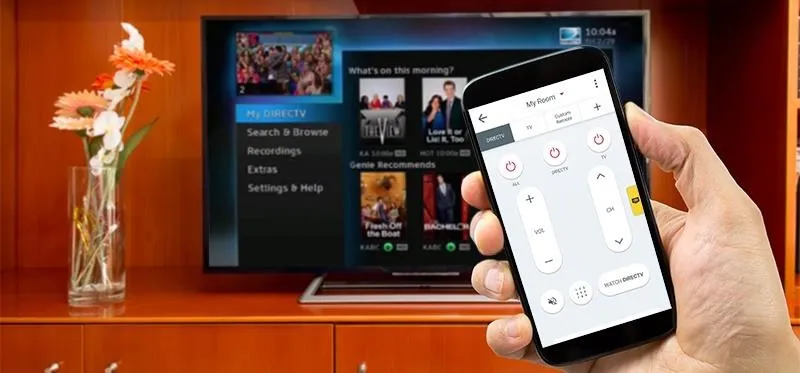
There are two common ways to control a TV from a phone. Wi-Fi is widely used with modern smart TVs, while infrared (IR) can work with compatible phones and older televisions.
| Feature | Wi-Fi Control | IR Control |
|---|---|---|
| Internet required | Usually local Wi-Fi | No |
| Phone needs IR blaster | No | Yes |
| Line of sight | Usually no | Usually yes |
| Smart-TV features | More extensive | More basic |
| Text input | Often supported | Limited |
| Best for | Modern smart TVs | Compatible older TVs |
For most smart-TV users, Wi-Fi control provides more features. IR can be useful when a compatible phone has an IR blaster and you do not want to depend on Wi-Fi.
Fixing Common Connection Problems
If your phone cannot find the television, first check that both devices are on the same Wi-Fi network. Then restart the app and TV.
You should also check whether the remote app has permission to access your local network. Without this permission, device discovery may fail.
If the TV recently lost its network connection or was reset, the phone app may not be able to find it. In such cases, the original physical remote may still be necessary for initial setup.
Choosing a Reliable Remote App
Before downloading a universal TV remote app, check its supported brands and features. Read the privacy information and review the permissions it requests.
For a single-brand TV, the manufacturer’s official app is often a straightforward choice. If you have several different TV brands, a multi-brand app may offer more convenience.
Also check whether important features are locked behind a subscription.
Final Thoughts
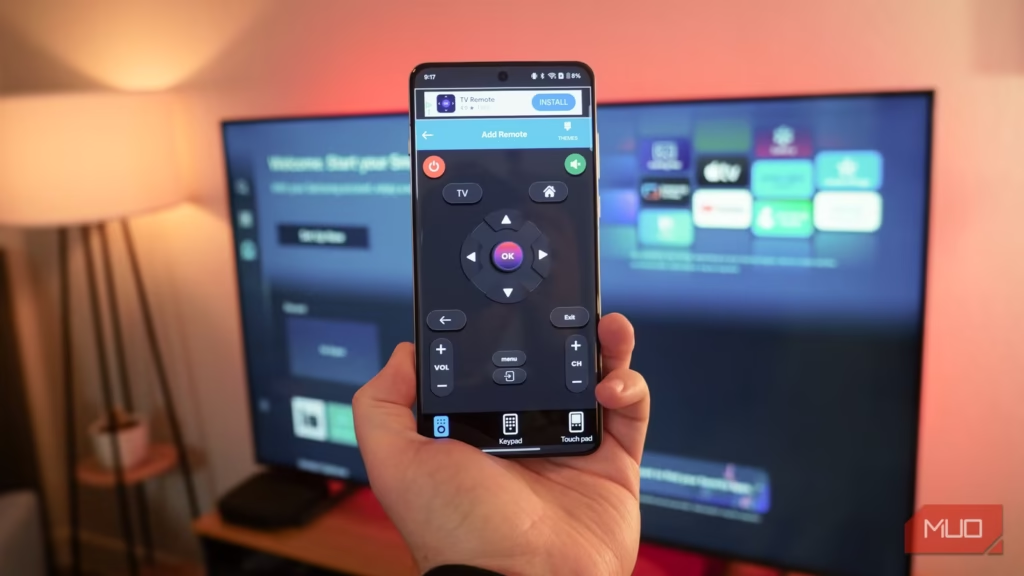
For many smart-TV owners, you can use your phone as a universal TV remote without buying replacement hardware. The basic process is simple: connect both devices to the same Wi-Fi, install a compatible app, pair the TV, and test the controls.
A phone remote is especially useful for streaming, searching for content, and typing passwords. Still, keeping the original remote nearby is sensible for resets, first-time setup, and situations where the TV is offline.
With the right app and a compatible television, your phone can become a convenient everyday remote.